.svg)
%201.svg)


%201.svg)
담당자가 프로모션 코드를 발송해 드립니다.
와탭을 경험해 보세요.
와탭을 경험해 보세요.
와탭을 경험해 보세요.
와탭을 경험해 보세요.
와탭을 경험해 보세요.
와탭을 경험해 보세요.
와탭을 경험해 보세요.
와탭을 경험해 보세요.
WhaTap AI를 경험해 보세요.
11 Ways to Use <ifconfig> for Linux Network Management

"History repeats itself," they say. In the early days of the Internet, developers created services by directly configuring and monitoring server networks. As the field became more specialized, the configuration of server networks developed into the domain of professional engineers. However, as the cloud takes on the specialized field of systems engineering, it requires developers to take on basic, logical systems engineering roles. DevOps, therefore, require basic system knowledge from both system engineers and developers. Hence, developers seek to understand basic network commands like 'ifconfig' which is essential for developers monitoring services.
ifconfig, short for "interface configuration," is a utility for configuring interfaces in Linux, specifically used for network management. It is one of the most frequently used command-line interfaces in Linux, along with 'top'.
1. Check Network Interface Configuration <ifconfig>
The 'ifconfig' command without arguments displays details of active interfaces. However, the ifconfig command alone does not show information about disabled network interfaces.
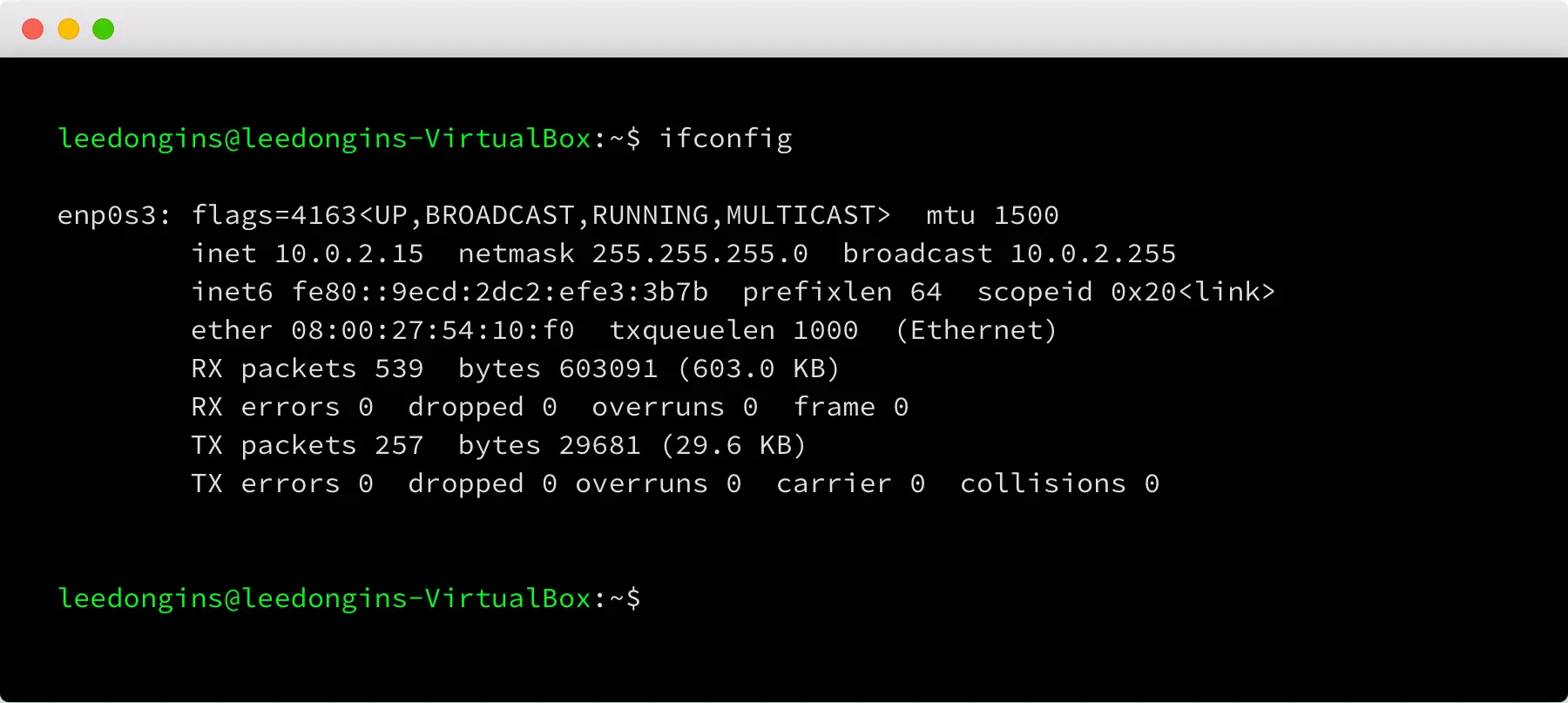
- [enp0s3]: Network interface
- [flags]: Indicates the status of the network card
- [mtu]: Maximum Transfer Unit (MTU) of the network interface
- [inet]: Assigned IP address to the network interface
- [netmask]: Assigned netmask address to the network interface
- [broadcast]: Assigned broadcast address to the network interface
- [inet6]: Assigned IPv6 address to the network interface
- [prefixlen]: Bit count used in the subnet mask for the IP address
- [scopeid]: Scope of IPv6 - LOOPBACK / LINKLOCAL / SITELOCAL / COMPATv4 / GLOBAL
- [ether]: Hardware address of the network interface
- [RX packets]: Received packet information
- [TX packets]: Transmitted packet information
- [collision]: Number of packet collisions
- [Interrupt]: Interrupt number used by the network interface
2. Check the configuration of all network interfaces. <ifconfig -a>
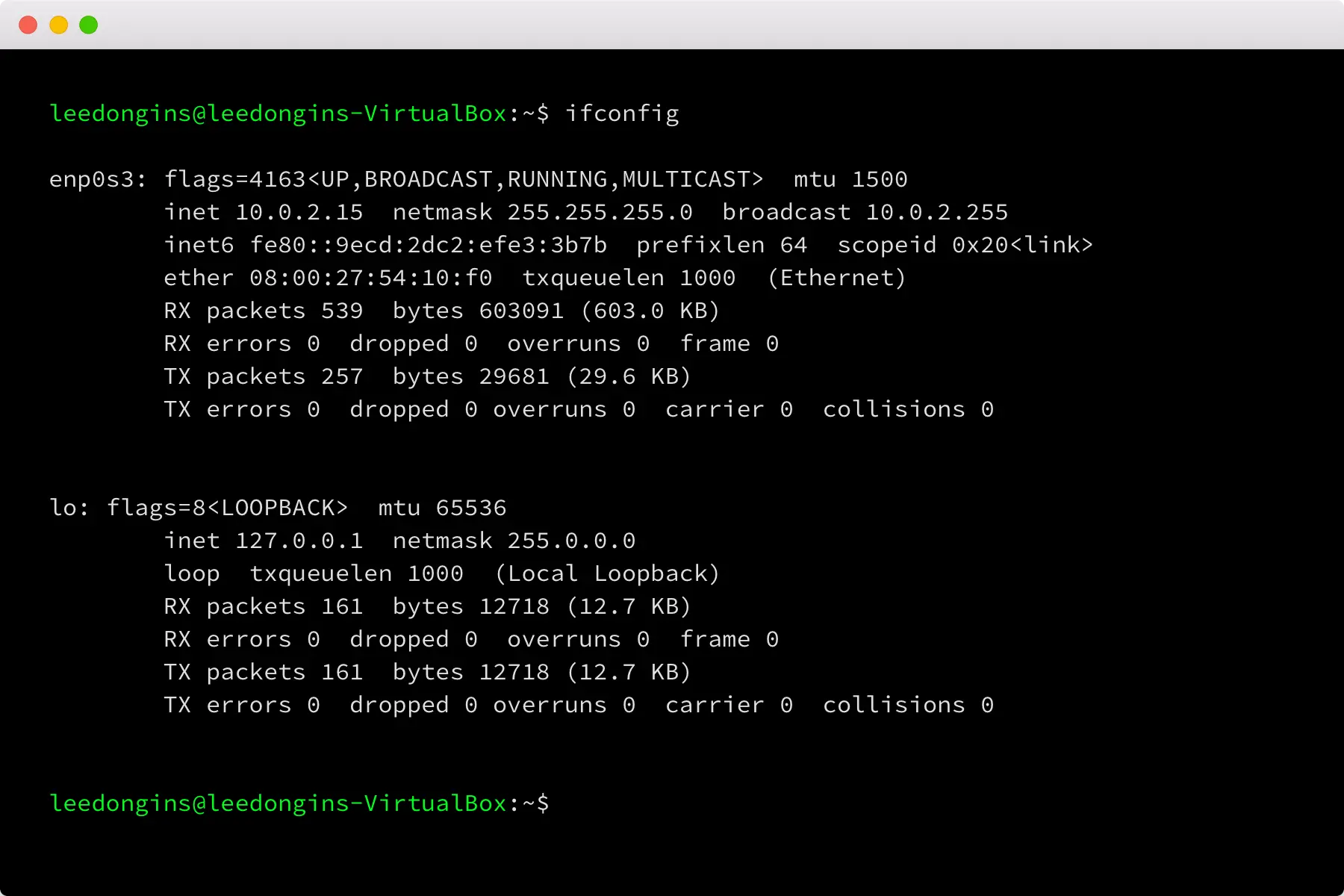
When the '-a' option is included, you can view inactive network interfaces. If there are no inactive network cards, the output will be the same with or without the "-a" option. In the example below, 'lo' represents the loopback interface that is disabled for internal communication.
3. Display information for the specified interface. <ifconfig [interface]>
In the case of too many interfaces, it's possible to view only the interface you want to see.
![Display information for the specified interface. <ifconfig [interface]>](https://cdn.prod.website-files.com/683542e0144e8b6bf7a76d7b/68a5797e0f1ba6e482992e69_6875b9eacaf7140ccdcd1eff_6874b1f5420c987bc91ef2a5_685e41db22c830fca332aaa2_Linux_ifconfig_3.webp)
4. Disable the specified interface.
Using the down option on the interface will enable the network interface card. When you check with Ifconfig enp0s3, you can see that the Flags have changed.
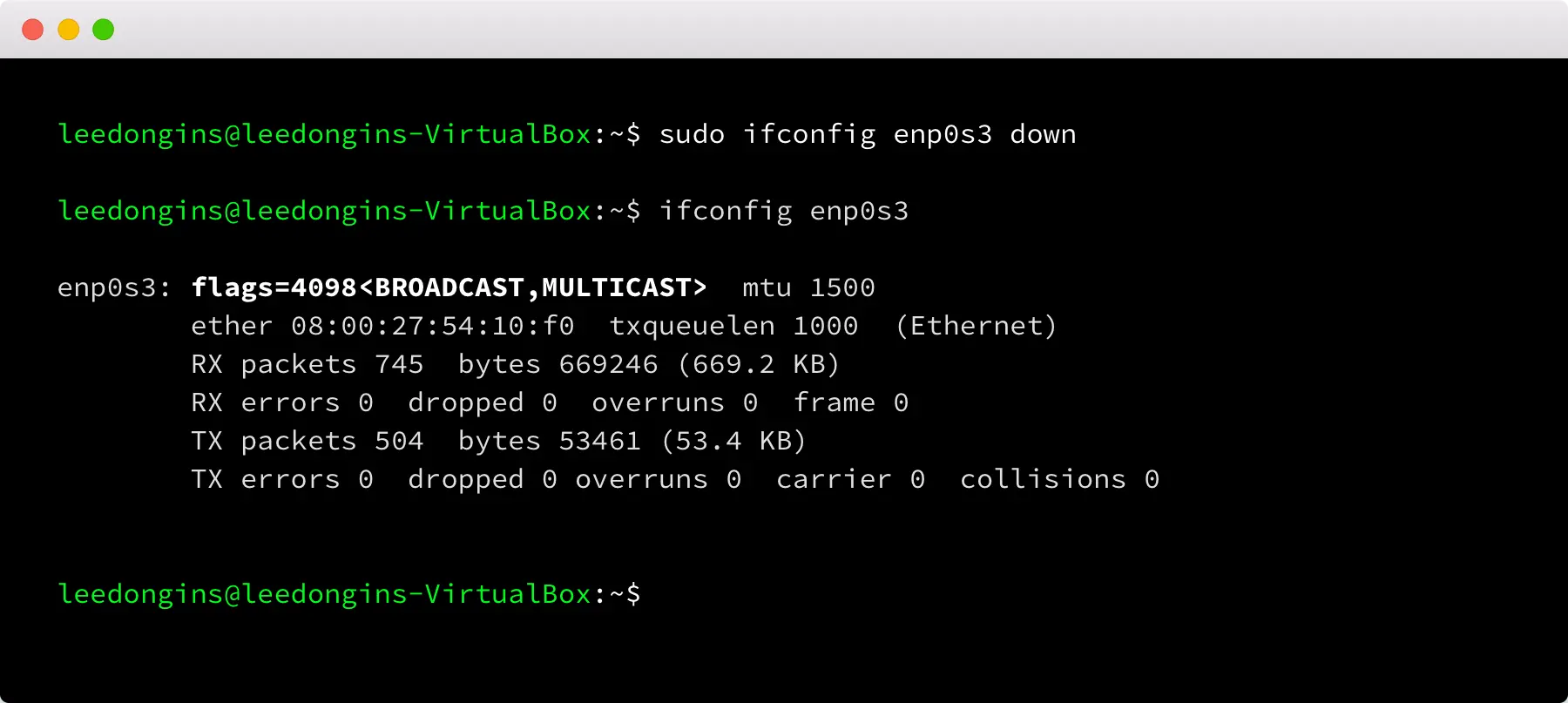
flags=4098 <BROADCAST,MULTICAST>
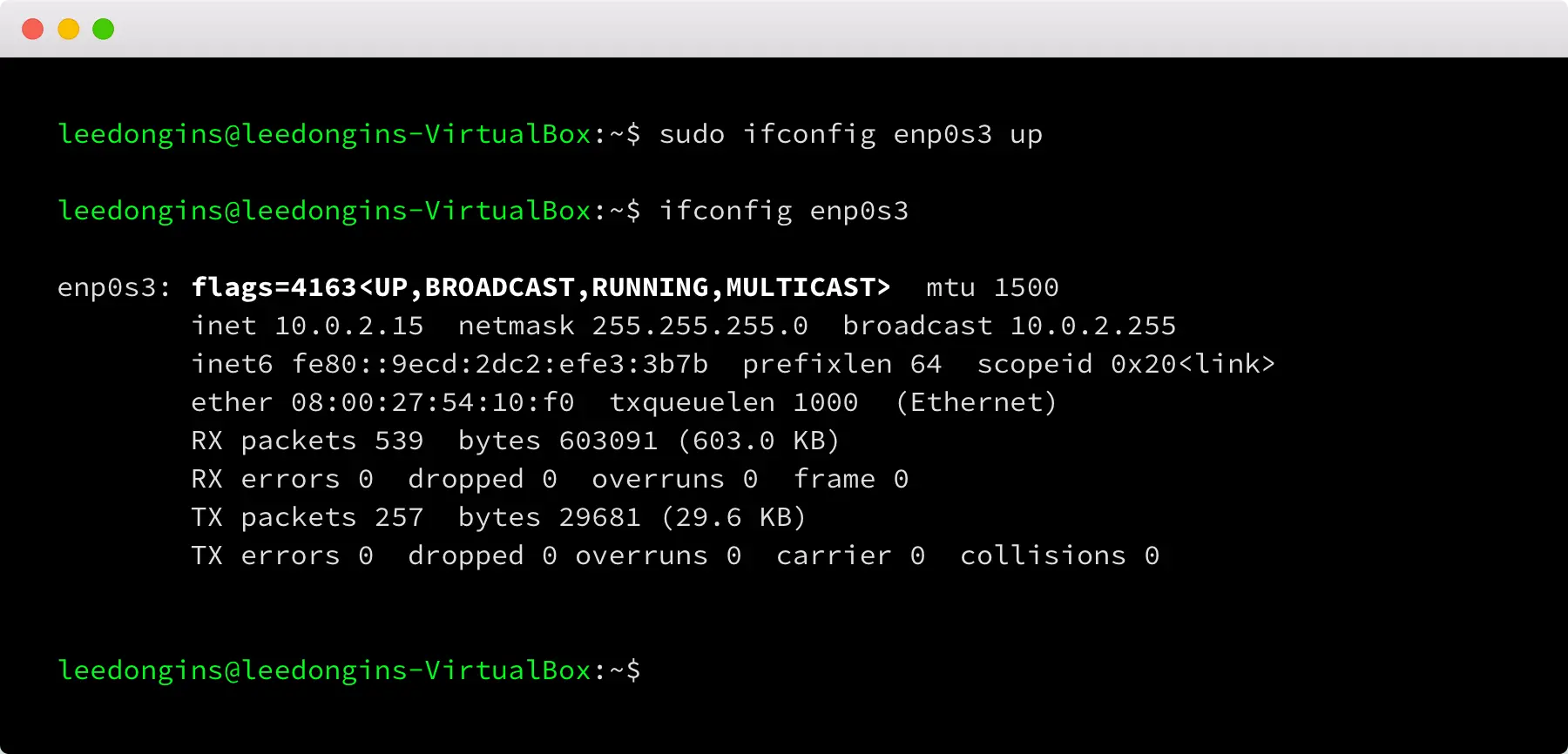
5. Enable the corresponding interface <UP,BROADCAST,RUNNING,MULTICAST>
Using the up option on the interface will enable the network interface card. When you check with ifconfig [interface], you can see that the Flags have changed.
6. Change the IP address of the specified interface using the command <ifconfig [interface] [IP]>
Changing the IP settings on a network interface can be done by entering the interface information and IP information.
![Change the IP address of the specified interface using the command <ifconfig [interface] [IP]>](https://cdn.prod.website-files.com/683542e0144e8b6bf7a76d7b/68a5797e0f1ba6e482992e72_6875b9eacaf7140ccdcd1f18_6874b1f5420c987bc91ef299_685e41db22c830fca332aaab_Linux_ifconfig_6.webp)
7. Change the netmask for the specified interface <'ifconfig [interface] netmask [IP]>
To change the netmask settings on the network interface, can be done by entering the interface information, the netmask option, and the mask information.
![Change the netmask for the specified interface <'ifconfig [interface] netmask [IP]>](https://cdn.prod.website-files.com/683542e0144e8b6bf7a76d7b/68a5797e0f1ba6e482992e63_6875b9eacaf7140ccdcd1f0b_6874b1f5420c987bc91ef2a8_685e41db22c830fca332aa9c_Linux_ifconfig_7.webp)
8. Change the broadcast address for the specified interface <ifconfig [interface] broadcast [IP]>
To change the broadcast settings on a network interface, you can enter the interface information, the broadcast option, and the mask information.
![Change the broadcast address for the specified interface <ifconfig [interface] broadcast [IP]>](https://cdn.prod.website-files.com/683542e0144e8b6bf7a76d7b/68a5797e0f1ba6e482992e6f_6875b9eacaf7140ccdcd1f05_6874b1f5420c987bc91ef29c_685e41db22c830fca332aaa8_Linux_ifconfig_8.webp)
9. Change the IP, subnet mask, and broadcast address for the specified interface simultaneously <ifconfig [interface] [ip] netmask [ip] broadcast [IP]>
In some cases, it is convenient to change all the information related to an interface at once. In this case, you can simply enter all the options at once.
![Change the IP, subnet mask, and broadcast address for the specified interface simultaneously <ifconfig [interface] [ip] netmask [ip] broadcast [IP]>](https://cdn.prod.website-files.com/683542e0144e8b6bf7a76d7b/68a5797e0f1ba6e482992e5a_6875b9eacaf7140ccdcd1ef9_6874b1f5420c987bc91ef2ab_685e41db22c830fca332aa99_Linux_ifconfig_9.webp)
10. Assign a MAC address to the specified interface <ifconfig [interface] hw ether [mac address]>
To change the MAC address settings for network interfaces, you can enter the interface information and the 'hw ether' followed by the new MAC address information.
![Assign a MAC address to the specified interface <ifconfig [interface] hw ether [mac address]>](https://cdn.prod.website-files.com/683542e0144e8b6bf7a76d7b/68a5797e0f1ba6e482992e66_6875b9eacaf7140ccdcd1efc_6874b1f5420c987bc91ef2ba_685e41db22c830fca332aa9f_Linux_ifconfig_10.webp)
11. Create a virtual interface by adding an alias to the specified interface <ifconfig [interface]:0 [ip]>
You can set multiple IP addresses on a network interface using aliases. After executing the command, you can verify that a new network interface has been added by checking with ifconfig.
![Create a virtual interface by adding an alias to the specified interface <ifconfig [interface]:0 [ip]>](https://cdn.prod.website-files.com/683542e0144e8b6bf7a76d7b/68a5797e0f1ba6e482992e78_6875b9eacaf7140ccdcd1f0e_6874b1f5420c987bc91ef2af_685e41db22c830fca332aaed_Linux_ifconfig_11.webp)
Conclusion
There are many command-line tools available for network interface management and monitoring, but ifconfig remains the most basic tool. Even developers often do not have system engineers on staff, so it is important to be able to use simple commands to check the network input and output of services or change network configurations. Additionally, as the demand for network monitoring increases, I recommend the adoption of monitoring tools such as Cacti, Zabbix, and Munin.
A DevOps tool with multi-tenancy capabilities, allowing developers and operators to view information irrespective of their location and responsibilities.
Get started with WhaTap for free

.webp)
.webp)


